Follow the steps below on how to set up a Google Account using your business email
Step 1 Open Google in your web browser.
Make sure you are logged into your Google account. If you don’t have one, click “Create account.”
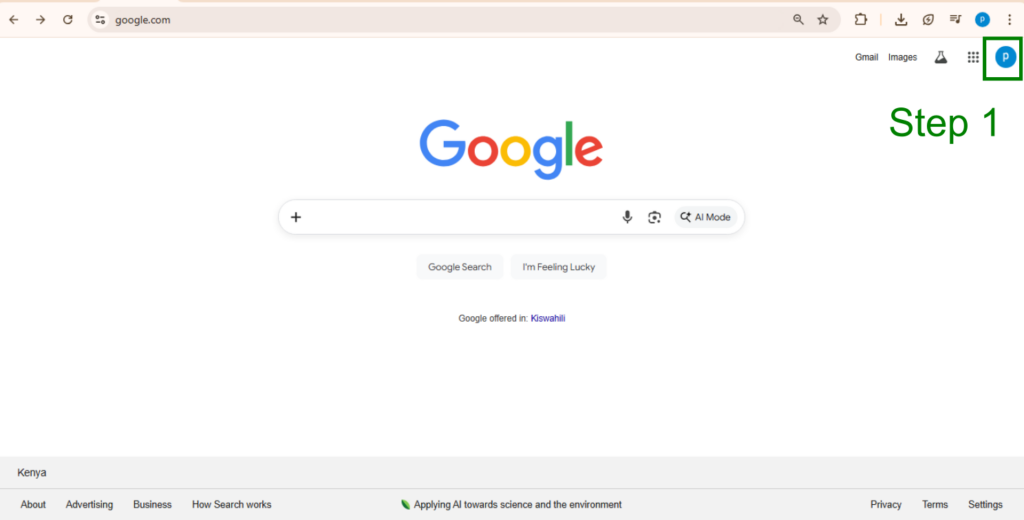
After opening Google, click your profile icon in the top-right corner, then click “Add another account.”
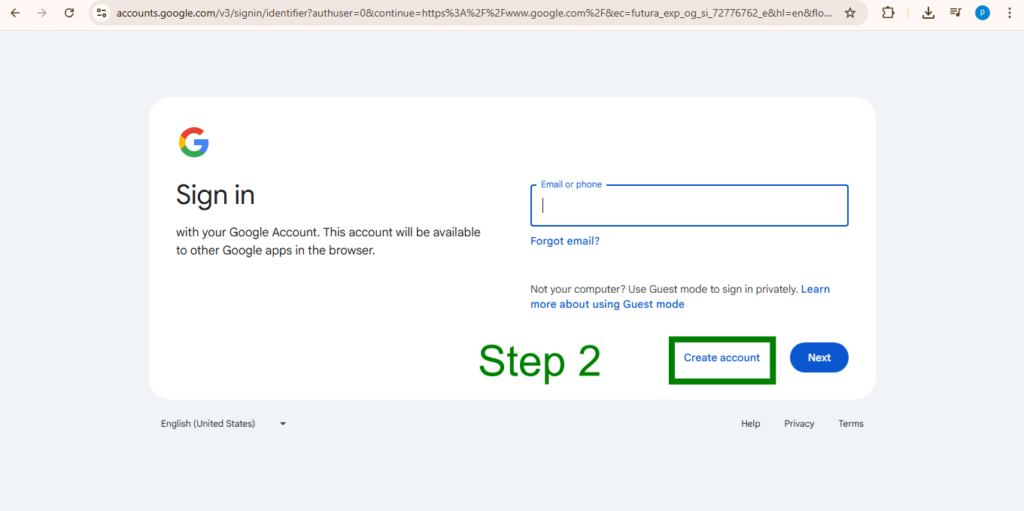
Step 2 Click “Create account.”
A small popup will appear. Select “For my personal use.”
Enter your first name.
Note: You can use your company name (e.g., Hog Software). Then click Next.
Enter your date of birth and gender, then click Next.
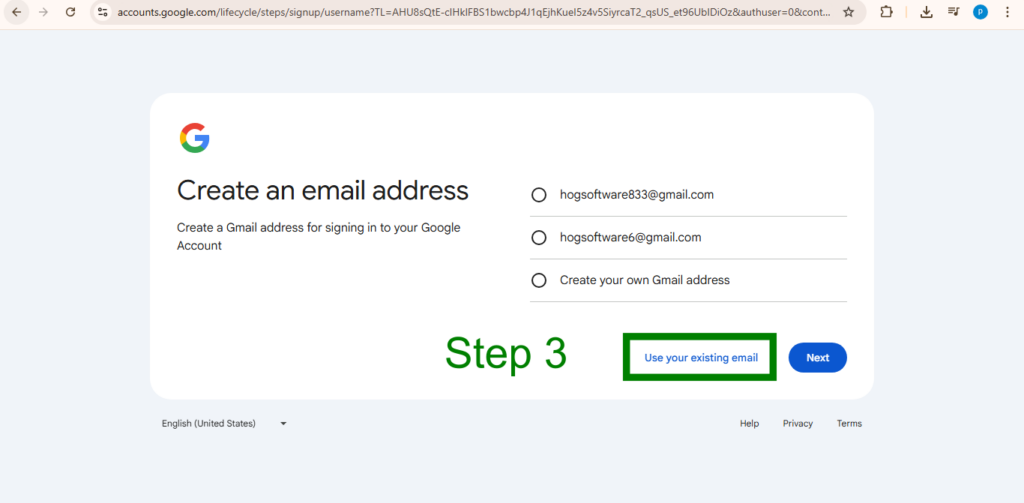
Step 3 On the next page, click “Use your existing email.”
(This is important since you already have a company email.)
Step 4 Enter your company email address. A verification code will be sent to that email.
Enter the code sent to your email (e.g., yourname@hogsoftware.com). If you don’t see the email, check your spam folder.
Step 5 Create a strong password using a mix of letters, numbers, and symbols.
Step 6 After setting your password, you may be asked to verify your identity.
Scan the QR code using your phone’s camera and follow the instructions.
Step 7 Once completed, you will be redirected to your Google account dashboard.
Click your profile icon in the top-right corner, then select “Manage your Google Account.”
Step 8 From the Home tab, you can:
- Add a profile picture by clicking the camera icon
- Add your address (optional)
NB always ensure to Use the same logo everywhere
- Gmail
- Website
- Social media
This builds trust and recognition, especially for your clients.